Activate two factor authentication
February 3rd, 2025
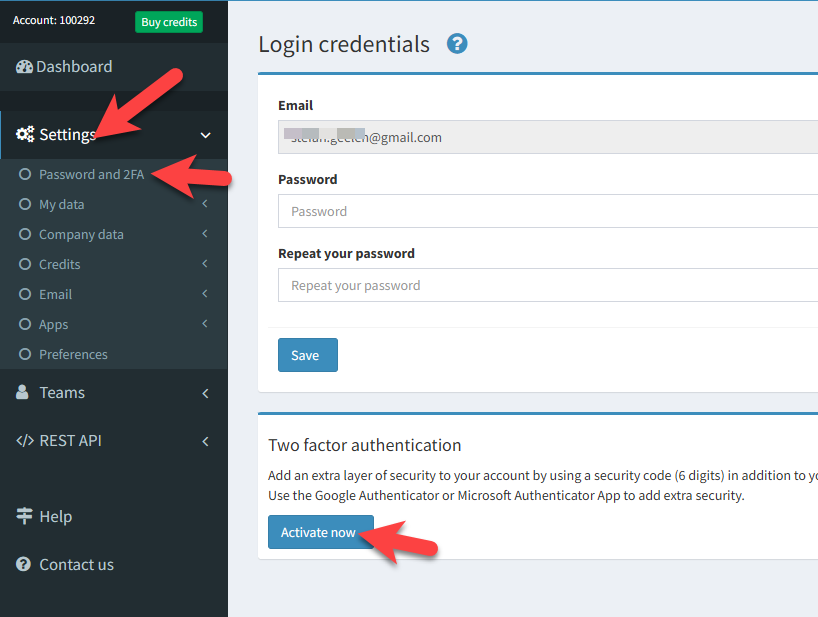
Add an extra layer of security to your OK!Sign account by using a security code (6 digits) in addition to your password when logging in.Do as follows:
- In your OK!sign account, click on Settings -> Password and 2FA in the menu and scroll down to the section: Two factor authentication.
- Click on the Activate now button
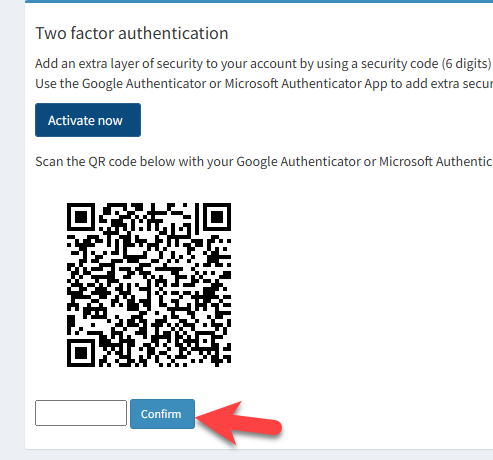
- A QR code appears. Use the Google Authenticator or Microsoft Authenticator App to scan the QR code.
- Confirm the activation by entering the security code (6 digits).
- Click on
Confirm.
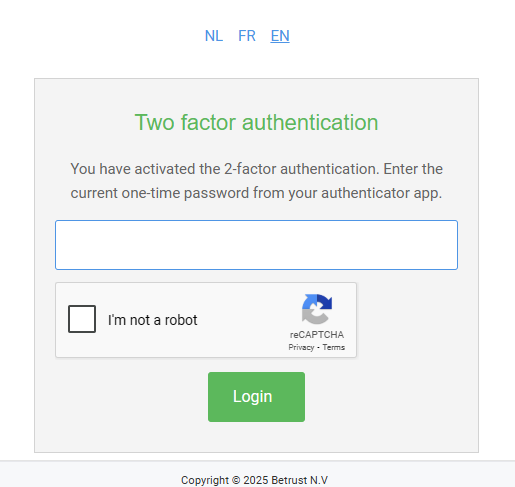
From now on, a security code (6 digits) will be requested when logging in as extra security.
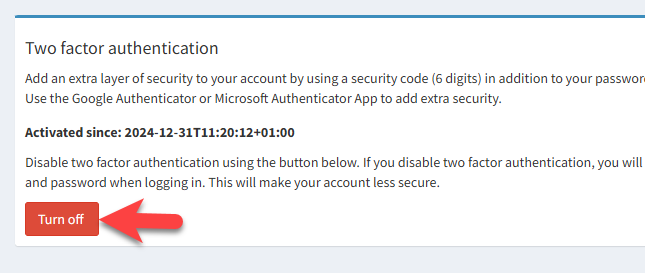
You can undo this by clicking the Turn off button.
Return to Blog